LatestUpdraftPlus Premium DownloadThis is one of the best website relocation/automated backup plugins, self-used for years. There are more than 3 million installations across the web. Relocation plugins more famous are UpdraftPlus, Duplicator Pro, All in One WP Migration and so on.
Diiamo also uses UpdraftPlus Premium for website migration and backups; it’s very reliable and stable, and I highly recommend it.
Here are a few relocation plugins to compare:
UpdraftPlus Premium: TheThe main advantage is the backup function, so if you are using a server that doesn't have a regular automatic backup function, it is recommended to use this plugin. The relocation/replication site allows you to transfer your data online, recover it via a network disk, and download it for re-uploading.
Its relocation function is the most flexible, relocation success rate is high, and relocation of the same site, its data is the smallest, within 3G volume.Mini-websiteIt is preferred for relocation. The downside is that it doesn't support multi-network site relocation, and you have to build WordPress and install UpdraftPlus Premium before you can relocate your new site.
Duplicator Pro: TheIt is particularly well-suited for migrating medium- to large-scale websites, supports the migration of multi-network sites, and offers greater advantages in terms of customization and flexibility. The new version featuresStaging Instance debugging feature.
All-in-One WP Migration Pro: TheEasiest to use, simplest relocation steps and methods, provides more powerful database processing and migration capabilities, suitable for novice users, especially for relocationlarge-scale website.
AIOWM: The backup files are too large—even a very small site generates a backup of over 1 GB—and since they need to be downloaded locally and then uploaded to the new site’s server for restoration, the process is too slow. However, it does have its advantages, and many people like using it, so Xiao Di has added it to the platform.
Duplicator is also the only plugin among the 3 plugins that allows you to migrate your website without installing a new WordPress backend (without a temporary domain name).
Diiamo foreign trade website for sale at the same time All-in-One WP Migration as well as Duplicator Pro Relocation plug-ins, 3 have their own advantages and disadvantages. UpdraftPlus main advantage lies in the backup function is powerful and easy to use, relocation function is also very cattle (data compression after the smallest volume), we perfect online relocation of a 3G large site, small and medium-sized sites recommended.
Tips: UpdraftPlus does not support multi-network sites, but All-in-One WP Migration and Duplicator Pro do. The latter two can support independent sites to move to multi-network single site, also support multi-network single site to move to independent sites, but also support the entire (including all sub-sites) multi-network site to move to multi-network site.
What is GPL plugin
This plugin is a GPL licensed product and is safe and legal. Click to learn what isGPL AgreementClick to learnWordPress official website about GPL. Simply put using the GPL license plugin/theme source code open source sharing, can be legally free to change, use, distribution.
The company that owns the plugin/theme mentioned in the title of this item is not affiliated with us in any way, and the company has not licensed its products or brands to us. This product is a distribution of the plugin/theme mentioned in the title, created by a third party company/developer and redistributed by us under the terms of the General Public License (GPL).
We use the plugin/theme name for the sole purpose of identifying the plugin/theme on which this product is based, with the intention of helping users better understand the functionality and possible application scenarios of our product, and in no way to impersonate or mislead. This product is sold under and respects the terms of the GPL license agreement and ensures that users are aware that they are acquiring a distribution of the plugin/theme based on an open source license. They are allowed to view, modify and redistribute the software to promote its free use and development.
Verified by Security Antivirus
Directly from foreign formal channels to buy, do not modify the source code. All plug-ins we use to build their own sites, used in a number of sites, safe, stable and reliable.Are you worried that the plugin is not secure? Check this articel:Is WordPress Cracked Plugins/Themes (Green, GPL, Nulled) Safe?.
- ByVirustotal Antivirus Verification;.
- ByWordfenceSource code review.
- BySucuriSecurity antivirus scan.

Changelog/ Update Method
General new version out within 24 hours of this site will be updated, then please visit this page directly to download the new version of the installation package upload update, the product title will be written on the latest version number. Can only be updated by uploading the installation package, mind not to shoot, if you want to update online please support the original version to go to the official website of the plug-in to buy.
NOTE: Do not update this plugin online through the backend!!!! After the update will become a free version, backup data to the network disk and other advanced features will be disabled. After the prompt update, please come back to this page to re-download the new version of the installation package to upload and install the update, the title has to write the version number.
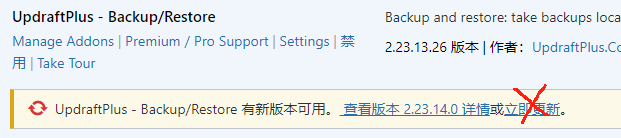
Click to view the update history of this plugin (Changelog). Note: The link is the normal version update record, the Premium latest version number is the first number +1 on top of the normal version number, the last number is the extra component number. For example, the normal version is 1.16.32.x, the latest version of Premium is 2.16.32.x.

UpdraftPlus Premium Download Terms of Purchase
This site plug-in purchased from foreign sites, the purchase price is4.99 USD/pcThe price is 2 years. Diiamo unified selling price of 19 yuan / a, spent a lot of effort to produce the use of tutorials also provide manual Q&A service, absolutely value for money.
Plug-in for learning and research purposes only, virtual products are reproducible, once sold no refund, please move to the detailsTerms of Service.
Diiamo for the purchase of users to provide after-sales service, plug-in use any questions please leave a message in the comments below, there will be answers to questions.
Installation / Activation Method
Install the downloaded installation package directly to enable the plugin.
Installation method 1: Upload and install
Find and click on "Plugins" > "Install Plugins" in the left menu bar of the website background, then click on "Upload Plugin" in the upper left corner, upload the downloaded zip installation package and click on "Install Now", after installation, click"Enable Plugin"Complete the installation.

Installation method 2.FTP installation
Unzip the plug-in package, put the unzippedFoldersUpload it to the plugins directory (xxx.com/wp-content/plugins).
Find and click on "Plugins" > "Installed Plugins" in the left menu bar of the website background, find the plugin in the list of plugins, and click "Enable".
UpdraftPlus setup tutorial
The setup page prompts the following picture, just ignore it and don't click on it.

Automatic backup before updating plugins
The following selection box will appear at the top of the update plugins and themes page. This is asking if you want to automatically backup the corresponding plugin/theme data before updating, so that you can restore the site with one click when there is a problem after updating the plugin.
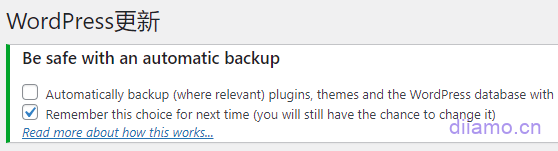
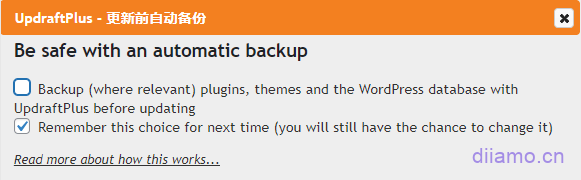
The second box is recommended to be checked so that you don't have to select it every time. Check the first payment if you want to automatically back up your data before updating the plugin, otherwise leave it unchecked.
UsualWe leave the first option uncheckedThis is because, except for a few plugins such as Elementor and Woocommerce, there are basically no problems with updating other plugins. Automatic backup before each update will lead to a large backup data quickly consume the disk capacity. It is recommended that Elementor and Woocommerce delay the update for 1-2 versions.
Set Up Scheduled Automatic Backups
Go to Settings and select the automatic backup frequency for files and database, the number of backups to keep, etc. respectively.
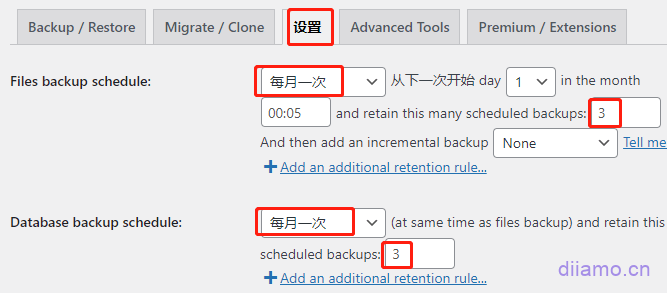
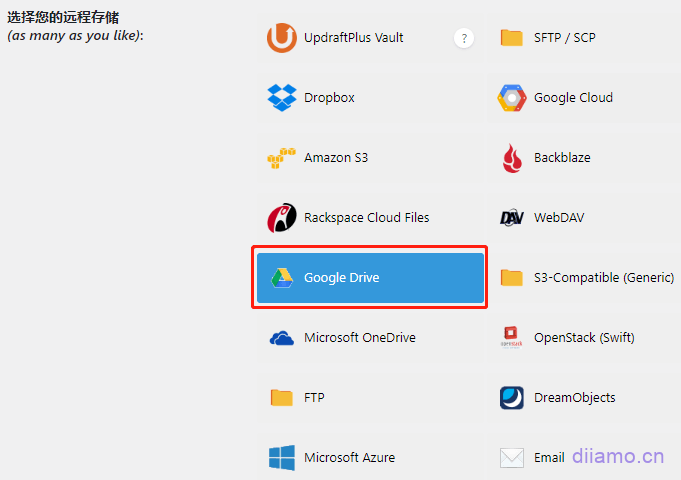
It is strongly recommended to check the backup to the network disk, so that the backup will be uploaded to the network disk at the same time, even if the server is deleted, you can also restore the data very safe! If you have a Google account, we recommend you to chooseGoogle Drive(Domestic server link is not available), free capacity has 15G.
The second choice is MicrosoftOneDrive network drive, You can connect to the domestic servers. If you register with an email address, you get 5 GB of free storage. Other cloud storage services either charge a fee or offer limited storage, so I don’t recommend using them. You can find someone on Taobao to increase your storage capacity—it costs about 2 yuan for a permanent upgrade to 15 GB, or 40 yuan per year to upgrade to 1 TB.
Check the contents to be backed up, it is recommended to check the contents according to the following figure, so that the data to be backed up can be backed up. "wp-content" backup content, it is recommended to exclude some unimportant to reduce the volume.
For example, ShortPixel with original image backup enabled may greatly increase the file size. Excluding it and not backing up the ShortPixel original image backup folder is much smaller.
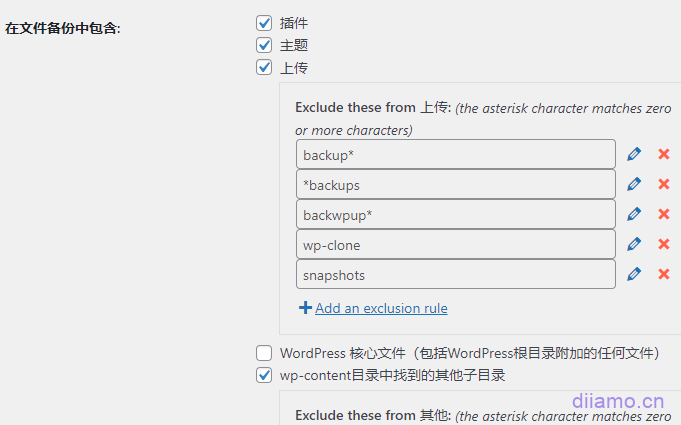
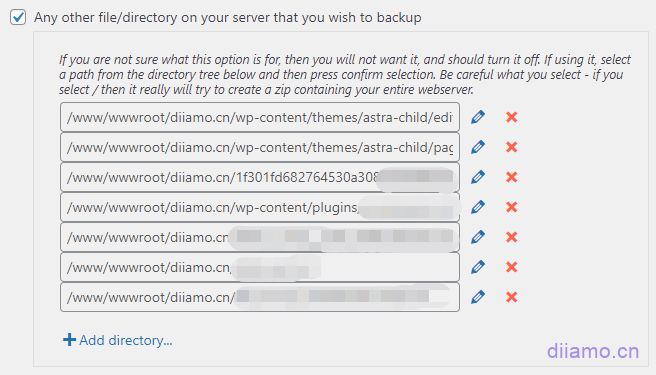
If the server has some important files you uploaded manually, here you can manually select the appropriate file, the backup will be relocated together with the expiration of the new site. In the new site recovery, will prompt the file path does not exist, manually select the appropriate path, point confirm on the line.
Click "Show Expert Settings" to expand the settings options.

Set the settings as shown below. Check the "Delete local backup" box as required. If your website data is very big, don't check it if you don't want to use too much disk resources. If your website is in China and the data is not very big, or you don't choose to backup to a network disk, it is recommended to check the box.
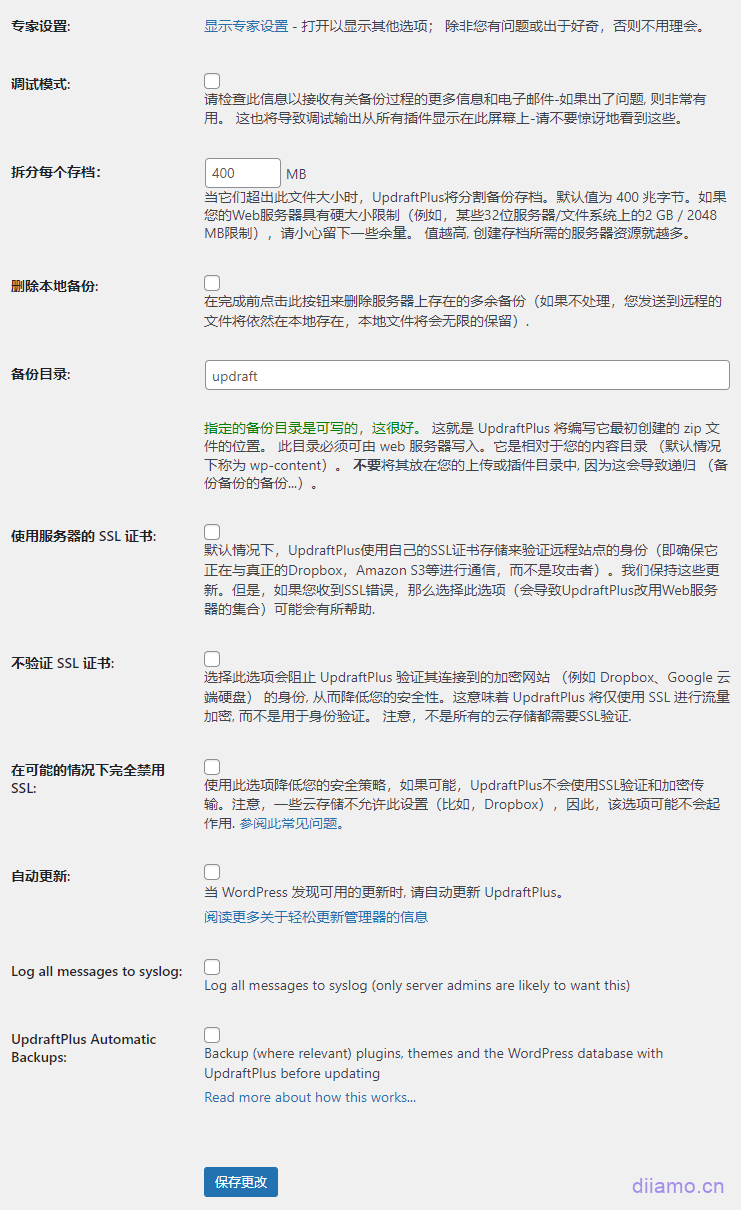
Finally, click “Save Changes” in the website settings to complete the setup for automatic, regular backups.
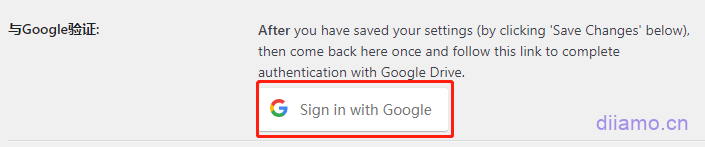
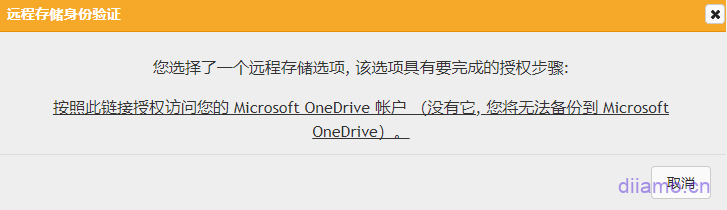
If there is a check box to backup to the network disk, after saving, you will be prompted to link to the network disk, click the link/button to jump to the network disk login/authorization page, follow the operation is OK.
How to Manually Back Up a Website
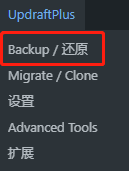
Behind the scenesTop barLocate the content shown in the image below, then click "Backup/Restore" to enter the backup interface.
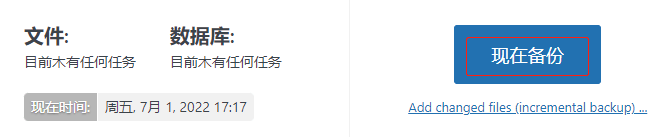
Click "Backup Now" to make a manual backup. It is recommended to make a manual backup every time there are important and significant changes to the website.
Check the items you want to back up in the image below; in most cases, simply checking the boxes as shown is the right approach.
If this is a critical backup, we recommend checking “Allow manual deletion of this backup only”↓ so that it won’t be overwritten by the number of backups set in the automatic backup settings. If needed, you can enter a backup label to help identify the backup.

Click the “Back Up Now/Immediately” button to start the backup. Once the backup is complete, the data that has been backed up will be displayed at the bottom of the current page.

How to Download Website Backup Data
First, follow the steps above to manually back up the entire site. The backed-up data will be displayed at the bottom of the page. Manually click on each data item one by one; a download button will appear above it. Click the button to download the data to your local computer. To restore the data later, follow the tutorial below.
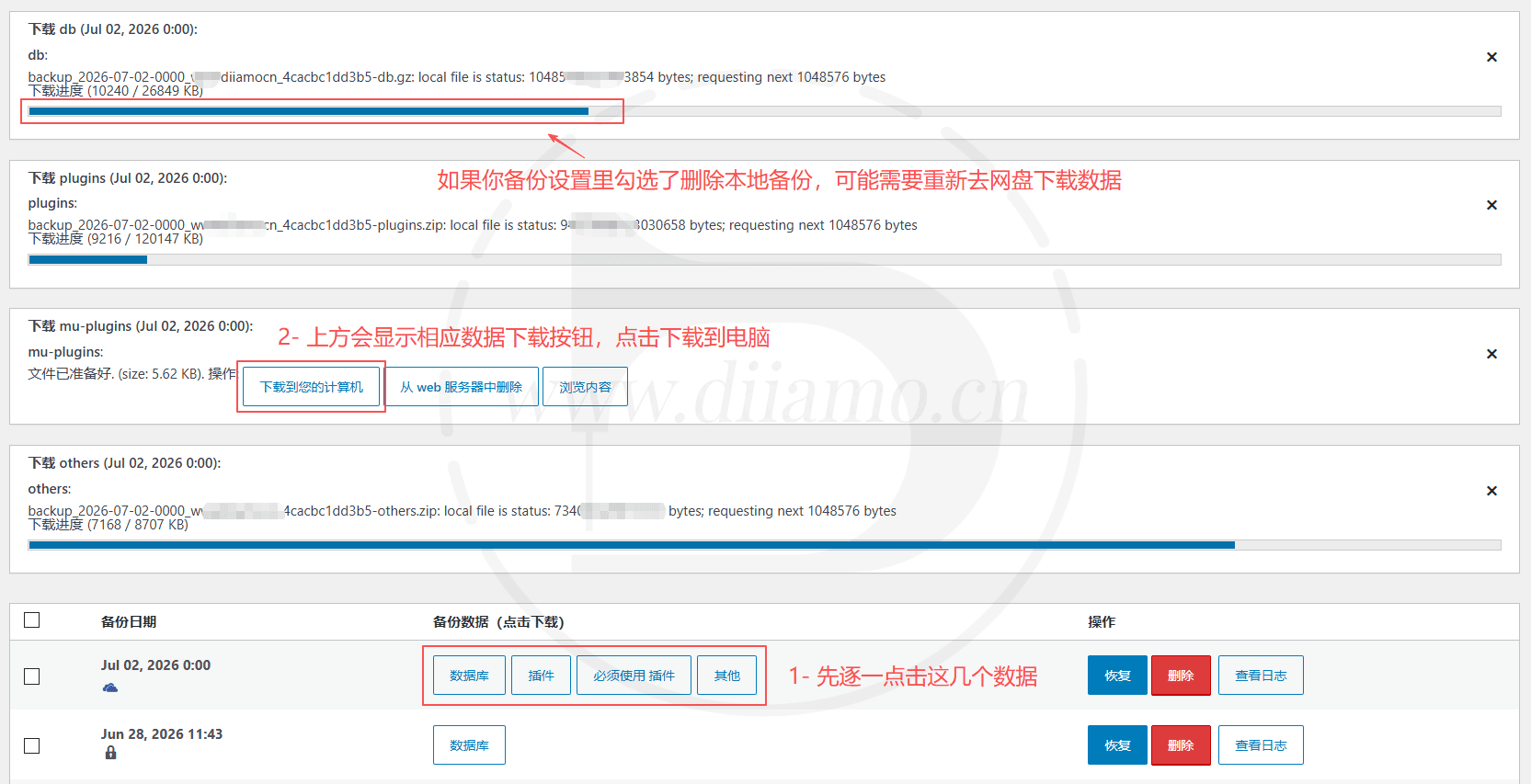
How to Restore Website Data
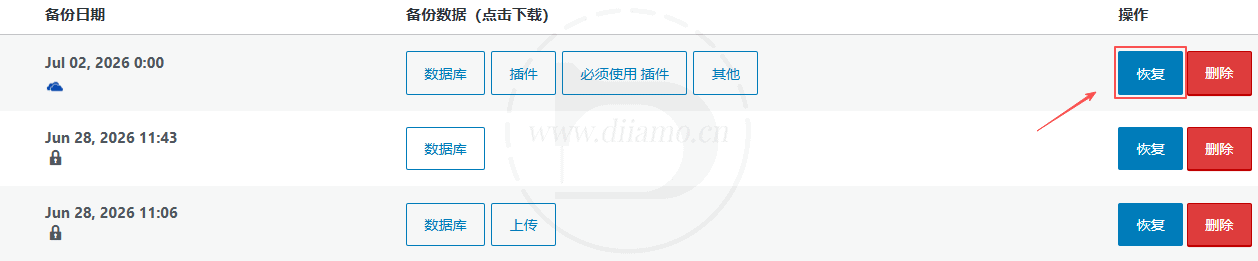
To restore data, simply click the “Restore” button to the right of the backup data and follow the steps. During the restoration process, you can choose which data to restore.
Note: We recommend backing up your existing data before restoring it, as the restoration process will overwrite your current products, posts, plugins, settings, and more.
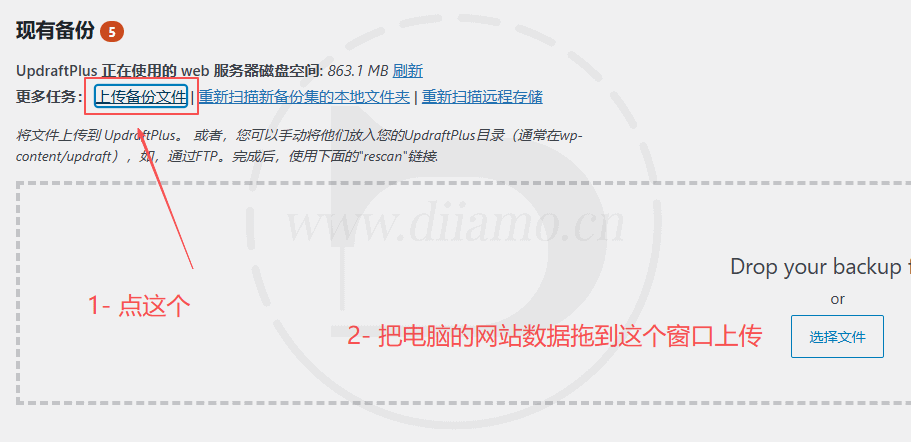
If you want to restore backup data from your computer (typically used when migrating a website), click “Upload Backup File” in the image below. An upload window will pop up; simply drag all your computer’s backup data into the upload window at once.
After uploading the backup data, the corresponding content will appear in the location shown in the image below. Simply click the "Restore" button to begin restoring the data.
If the current website URL is different from the one in the backup data, be sure to replace the old URL in the database with the new one after restoring the data. See below for instructions on how to replace the URL.
Data recovery failed; a message indicating that the data does not exist was displayed.
The owner of uploaded data packets must be "www." On some servers, the owner changes to "root" after a file is uploaded, which naturally prevents the file from being read. Simply change the owner back to "www."

UpdraftPlus Website Relocation Tutorial
Depending on the method of relocation data transfer, the UpdraftPlus plugin has 3 methods of relocating a site (just choose one of them to relocate), which areOnline Relocation, , ,Upload file relocation, and the relocation of the web site.
Note: Regardless of which UpdraftPlus relocation method you choose, you will need to bind the relocated site with a (temporary) domain name and install the UpdraftPlus plugin in the backend to operate the relocation.
If you are moving to a site that does not have a bound domain name, it is recommended that you switch to theDuplicator ProRelocation. It allows you to relocate a site if the relocated site is not accessible through the domain name (no domain name is bound).
It is recommended to use the online data transfer method to relocate/replicate the website in preference, which is fast and good without downloading data. Click to viewOnline Relocation Tutorial. If the online relocation transfer data prompts an error and cannot continue, one of the reasons is that the Pagoda panel firewall (or other firewalls) is blocking it, turn off all firewalls and try again.
. If the online relocation tutorial is not successful, try the file download and then upload method to relocate the site, click to viewUpload file site relocation tutorial. It is to download the data to the computer and then upload it to the move-in site to recover the data, steady.
However, this method is not suitable for file data to a few G site, because the download and upload file time may be very long. Especially if it is a garbage server like Hostinger, which downloads hundreds of megabytes of files and terminates the file download when it reaches 20 megabytes or so, and the file downloaded to the computer is a defective file that can't be used.
Another method is to download the backup data recovery directly from the web disk. If the move-out site has used UpdraftPlus to automatically backup data to a network disk, the same link to the same network disk and folder will be available at the move-in site.
Then click "Rescan Remote Storage" in the backup interface to link the backup data to the website, click the "Recover" button, and press the "Recover" button.Online RelocationmethodologiesSecond half of the tutorialThe operation is just a matter of a few mouse clicks to complete the relocation.

Tip: After relocating the site, don't do anything, visit the front-end directly to see if it's normal (pictures won't open ignore first). If you can't, clean up the cache, if you use Elementor, just edit the page and save it, then refresh the front-end. If it still can't work, maybe your data relocation or recovery is incomplete, get it again.
If images or other content fail to load after migration, it's because some URLs haven't been updated. Regardless of the situation, you must replace all old URLs with new ones after migrating your website. First, use Elementor's built-in tools to update URLs, then install a free database replacement plugin.Better Search ReplaceSimply replace the old URL with the new one.
Tip: Before replacing the URL, you must backup the data first! First use Elementor to replace because Elementor data is stored in the database in serialized format, direct replacement may destroy the data structure, first use the tool to replace the URL is more stable.
First, use the Elementor automated tool to replace the URL in the following location. Note that the URL should be formatted as a full URL with “https://”.

Then install the free database replacement pluginBetter Search Replace (remunerativeBetter Search Replace ProMore stable and reliable), replace the URL. Try to replace the URL with “https://” as in the picture below. It is not recommended to replace the URL with xxx.com, it is very easy to cause problems.

Caution:In the case of the following “Replace GUIDs” 99%must notTick. If it is a copy of the old site to build a new site (different domain name), and the new site has not been submitted to the search engines, this situation can only be checked.
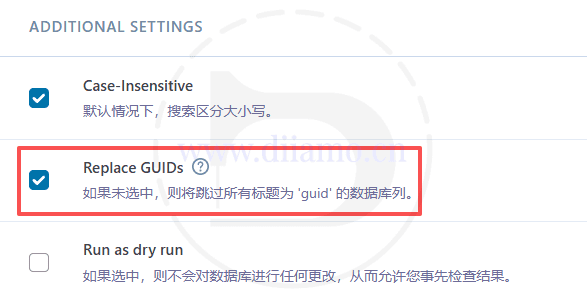
Replacement of data is easy to break the site, please check the URL to be replaced, in addition to the URL of other content do not easily replace. After replacing the URL, be sure to clean up all the cache (especially the object cache) and check whether the front-end display is normal. If replacing the URL leads to an error, just restore the data and replace the URL again.
Focus on checking whether the display and content of each page are correct. Xiaodi has tried to replace some ACF fields on the detail page, the content of all the article comments and all the codes added by Elementor Custom Code after replacing the URL, which are not the same originally.
After replacing the URL, if the background of the site some interface display anomalies, F12 developer tools to view the tip of the resource loading failure may be a problem of anti-theft chain settings. For example, Pagoda site's anti-theft chain enabled, the input is the old URL, some resources will fail to load at this time, close the anti-theft chain function can be.