I had a customer feedback that a front-end image was not displaying correctly, not the same as the one displayed inside the Elementor editor.
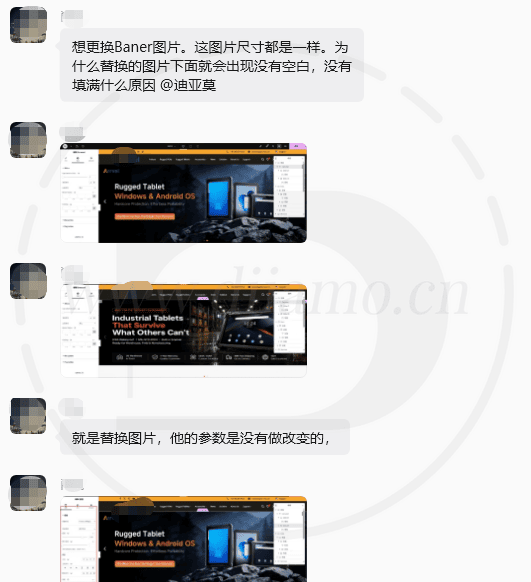
Reason:Xiaodi analyzed and found that the picture displayed on the front-end is not the same as the details of the uploaded picture, and found that the customer deleted a picture, and then re-uploaded a picture with the same name, resulting in the old and new 2 pictures of the网址相同.
CDN以及浏览器等保留了旧图片缓存,在网址相同的情况下会直接显示旧图片缓存,不显示新图片。
Avoiding the display of old cache maps
If we tech-savvy people were handling this, we’d rename the new images before uploading them to prevent the old cached images from being displayed. But our customers don’t know how to do that, and with so many of them, it’s impossible to explain it to each one individually.
Some people add code to append a timestamp suffix to the URLs of newly uploaded images to distinguish them from older ones. This avoids the problem and also bypasses WordPress’s image duplication check, but the resulting URLs aren’t very clean. Xiao Di is a perfectionist and can’t stand that.
所以小迪想了一个方法,当删除图片后,新上传一样名字的图片会自动给新图网址加上数字后缀,以区分旧图。
For example, https://www.diiamo.cn/a.jpg becomes https://www.diiamo.cn/a-1.jpg and the URL suffix is added “-1”. The name of the image remains unchanged, which is beautiful and convenient for customers to distinguish the uploaded images by their names.
If you delete it again and upload it again, the URL becomes https://www.diiamo.cn/a-2.jpg and so on.

Uploading images as usual is not affected; the default WordPress mechanism is still used: when uploading multiple images with the same filename at the same time, suffixes such as -1 or -2 are automatically added to the URLs of subsequent images, while the filenames remain unchanged.
Add the following code to the bottom of the (child) theme's functions.php file and save it. You can also use theWPCode Pro, , ,Perfmattersand other plugins to add code.
代码只会在后台加载,轻量、速度快,性能好,超过30天的数据会被自动清理,避免体积膨胀。
Or do you prefer to change the picture name way manually?
This code is mainly for customer websites to reduce after-sales, their own website, then rename the picture and upload can avoid this problem.
Di is not good at names and gets a big headache every time she thinks of a different name for a picture, so I'll add this code as well to save myself the trouble.

删除图片自动清理 Cloudflare CDN缓存
Image compression plugins like ShortPixel include a feature to connect to the CloudFlare CDN, which automatically clears the CDN cache when images are recompressed. If you’re using a CDN, we recommend enabling this feature in the plugin settings.
The vast majority of caching plug-ins also have a link to CloudFlare CDN function, but is limited to automatically clean up the page cache, deleting images will not automatically clean up the CDN cache. super Page Cache this caching plug-in, DiSuggestions were made to officials, I hope they'll implement automatic clearing of the corresponding CF CDN cache when images are deleted. The official customer service team replied that this is a great suggestion and they'll look into it.
You can also suggest to the authors of other caching plugins that they add support for automatically clearing the corresponding Cloudflare CDN cache when images are deleted. Alternatively, you can use AI to develop this feature for a caching plugin yourself; there’s plenty of existing plugin code you can use as a reference.